
Workspace
Dashboard
Section titled “Dashboard”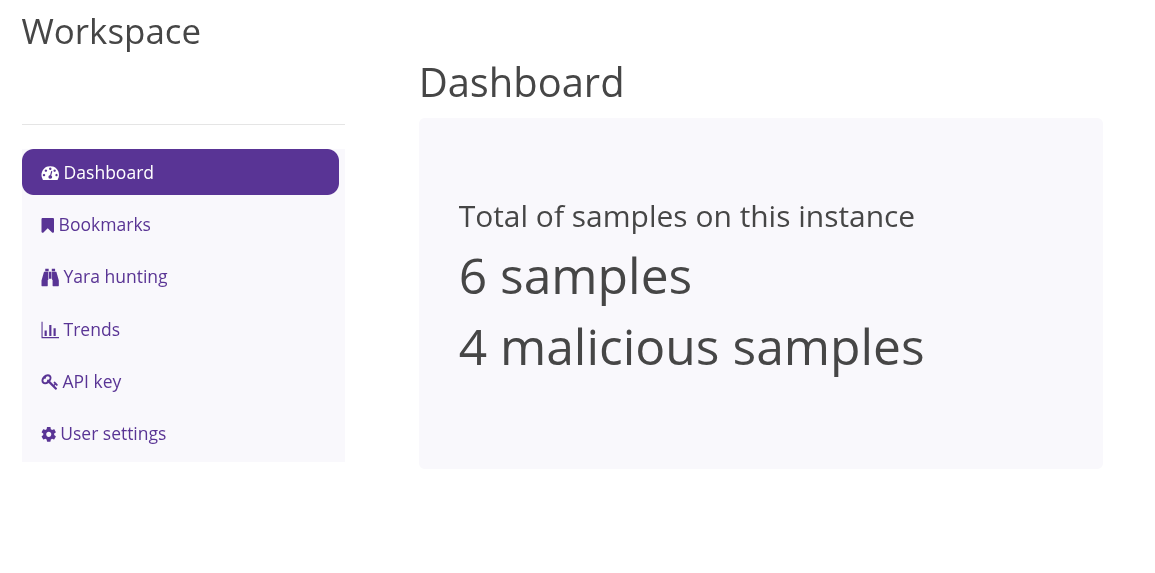
The workspace page is where you will find your API key, where you can bookmark and take personal notes on samples, define private and public Yara rules, visualize instance trends, and set your preferences.
Bookmarks
Section titled “Bookmarks”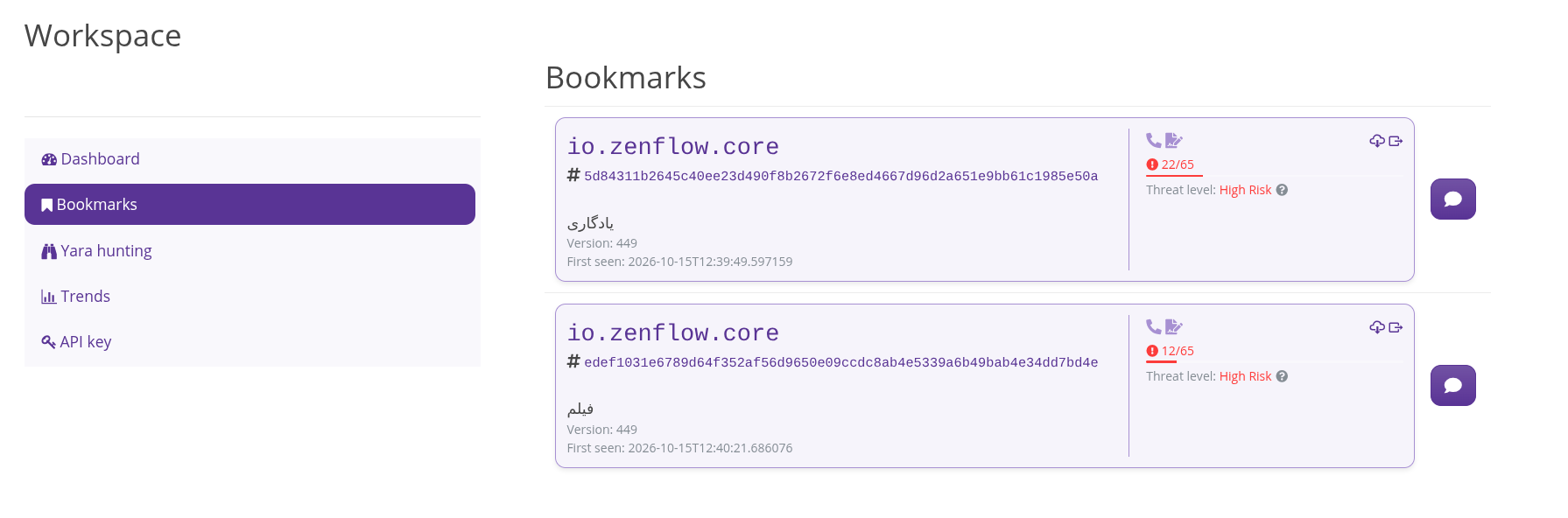
In this section you can view your samples, and the ones you manually bookmarked. The samples you upload are automatically bookmarked, making them easy to find later on.
On the right of each sample is a bubble button, this is used to store personal comments on the sample. These are private, but not encrypted.
Yara Huntings
Section titled “Yara Huntings”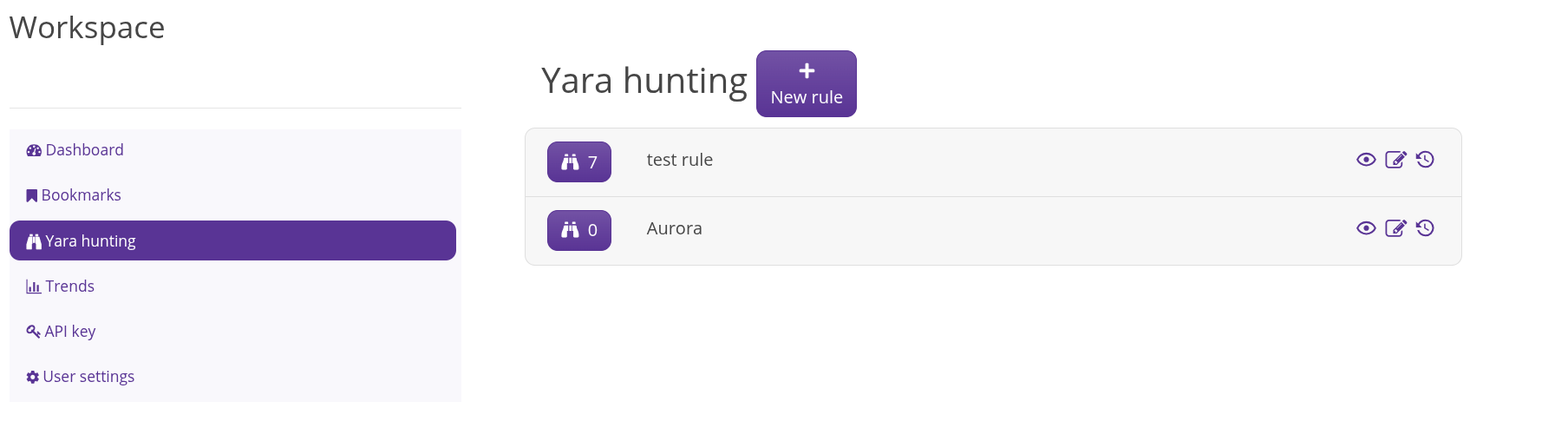
Here is where a user can define their own yara rules and view the corresponding matches.
Rules management
Section titled “Rules management”Create
Section titled “Create”To create a new rule, click the New Rule button.
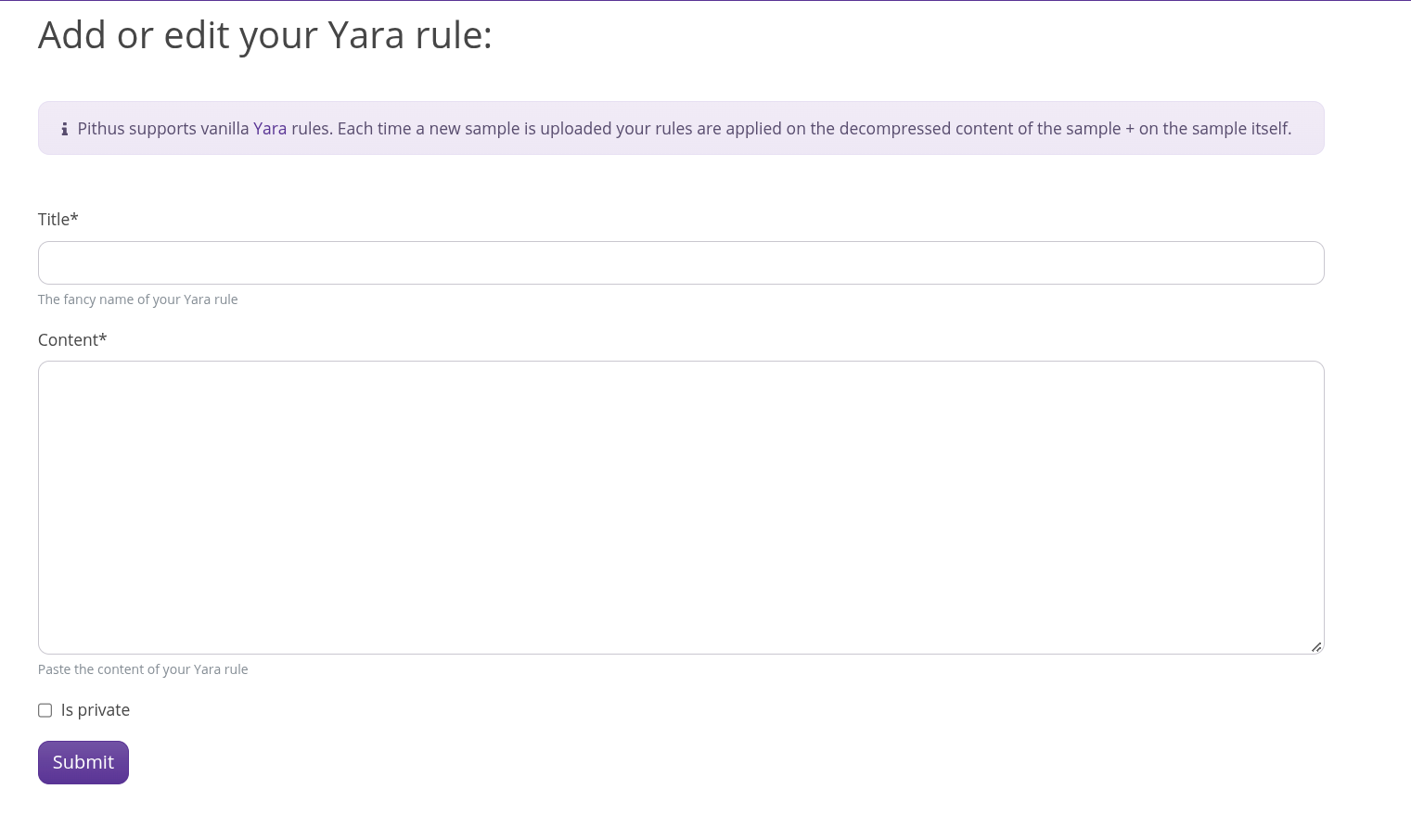
Give a title, and the rule’s content. Yara documentation can be found here: https://yara.readthedocs.io/en/stable/
Then choose if the rule should be private or not. A private rule will show its result only in the workspace, while a public rule (default) will show in every matching sample’s report, under the Threat Intel section.
Click the Submit button to validate your rule.
To view the content of an existing rule, click on the eye icon to the right of the rule’s name.
To edit an existing rule, click on the pen and paper icon to the right of the rule’s name.
View matches
Section titled “View matches”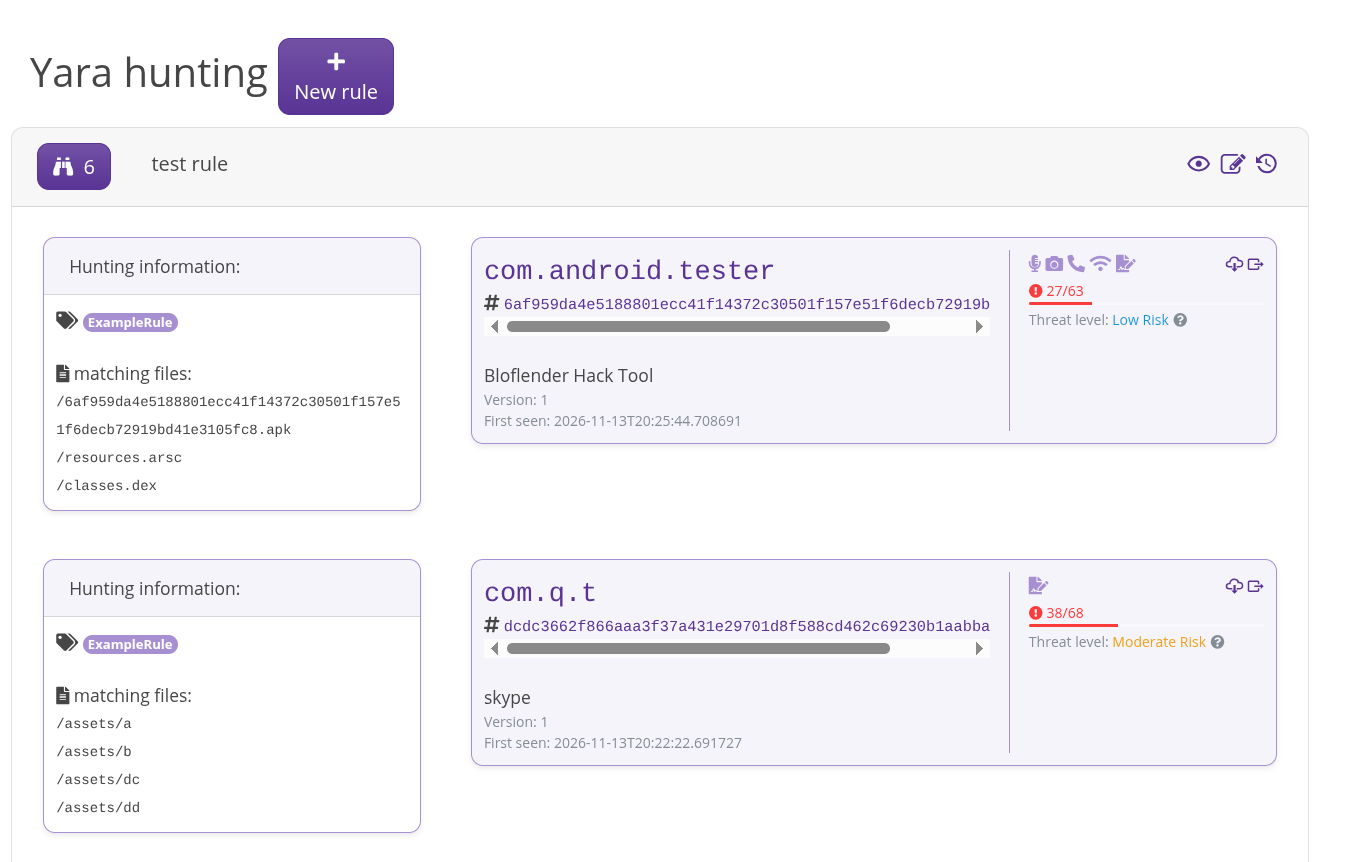
By clicking the binocular button, for each sample matching the rule, an entry will be displayed with:
- the card on the left showing which files matched the rule.
- the card on the right identifying the corresponding sample
Retro Hunt
Section titled “Retro Hunt”In order to launch a retro hunt, click on the reverse clock icon to the right of the rule’s name.
A retro hunt will run the yara rule on every samples already present in the instance’s database. A notification will be sent for each new matching sample.
Trends
Section titled “Trends”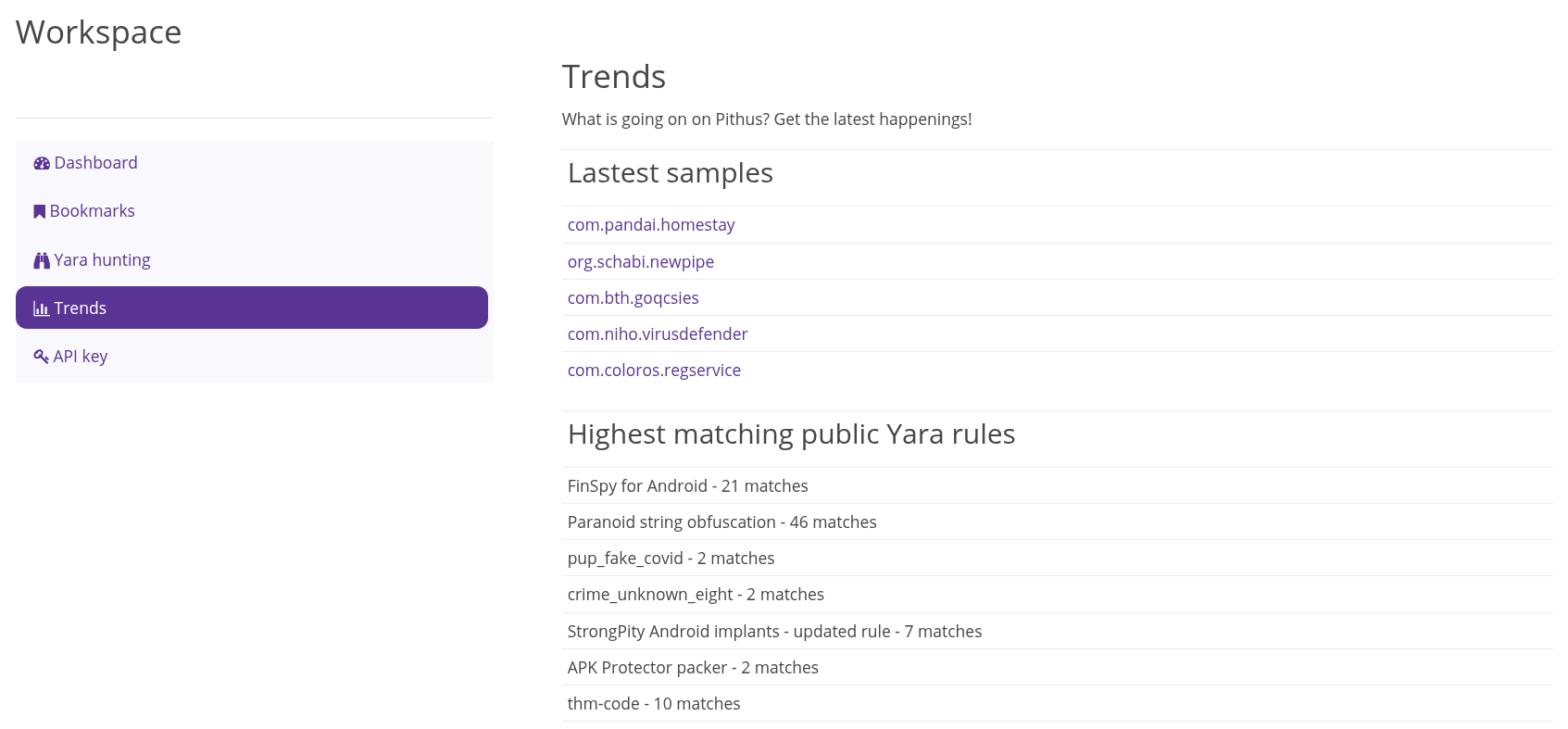
In trends is where you can visualize the activity of your instance:
- the latest samples
- a ranking of the public yara rules
- the trending malwares in the instance
API key
Section titled “API key”This is where you will find your API key, do not share it with anyone, do not publish it. For the time being there is no way to reset your API key.
User Settings
Section titled “User Settings”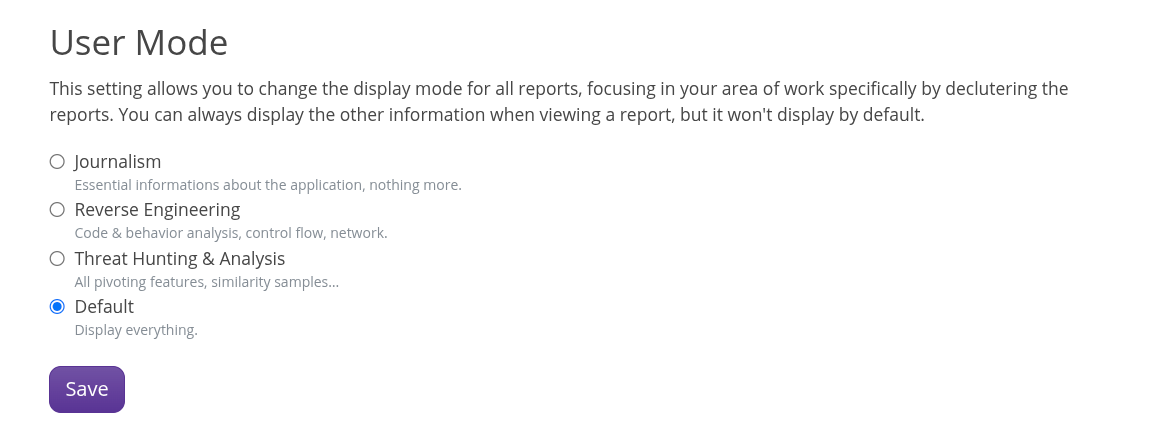
This section allows you to set you display preferences through the User Mode setting. User mode are designed to remove the noise and let you focus on the data meaningful to your activity. The Journalist mode will remove most of the complex information, this mode is recommended to inexperienced users. Default mode shows everything.
Whatever mode you choose, you will still be able to show the other information if needed, it is only hidden by default.