
Search
Default search
Section titled “Default search”Search bar
Section titled “Search bar”The search bar uses the Lucene query syntax, allowing to construct complexe search query.
All the fields of a report can be searched, here are some of the most common examples:
- Sample MD5:
md5: 3acab2... - Sample SHA1:
sha1: 3acab2... - Sample SHA256:
sha256: 3acab2... - Sample UAID:
uaid: 3acab2... - Requested Android permission:
permissions: *.internet - Defined Java class:
java_classes: "Lcom/amazon/device" - Requested Android feature:
features: *camera - Application package name:
handle: fr.meteo - Application name:
app_name: Google - Found domain:
domains: *google* - Certificate MD5 fingerprint:
cert_md5: 3acab2... - Certificate SHA1 fingerprint:
cert_sha1: 3acab2... - Certificate SHA256 fingerprint:
cert_sha256: 3acab2... - Certificate issuer:
cert_issuer: *google* - VirusTotal detection:
vt.malicious:>1
Search results
Section titled “Search results”Similarity graph
Section titled “Similarity graph”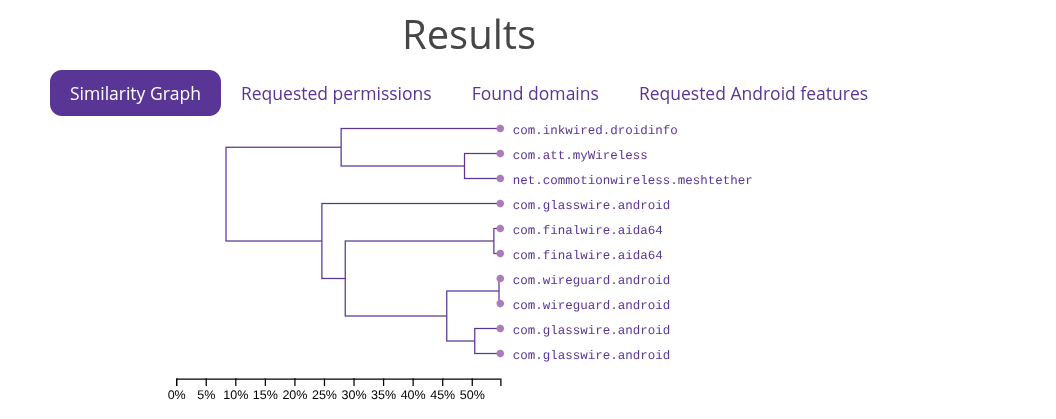
At the top of the search results is the Similarity Graph. This graph is a way to visualize which applications returned in the search query share similarities and to which degree.
In the above graph, we can quickly see that the two com.wireguard.android apps are sharing a lot of similarities: they are linked to each other with very short horizontal links.
The applications from the first branch (the 3 at the top of the graph) only share ~8% of similarities with the 8 other applications.
This graph can be used to identify the more relevant samples from a search when doing threat analysis.
Matches
Section titled “Matches”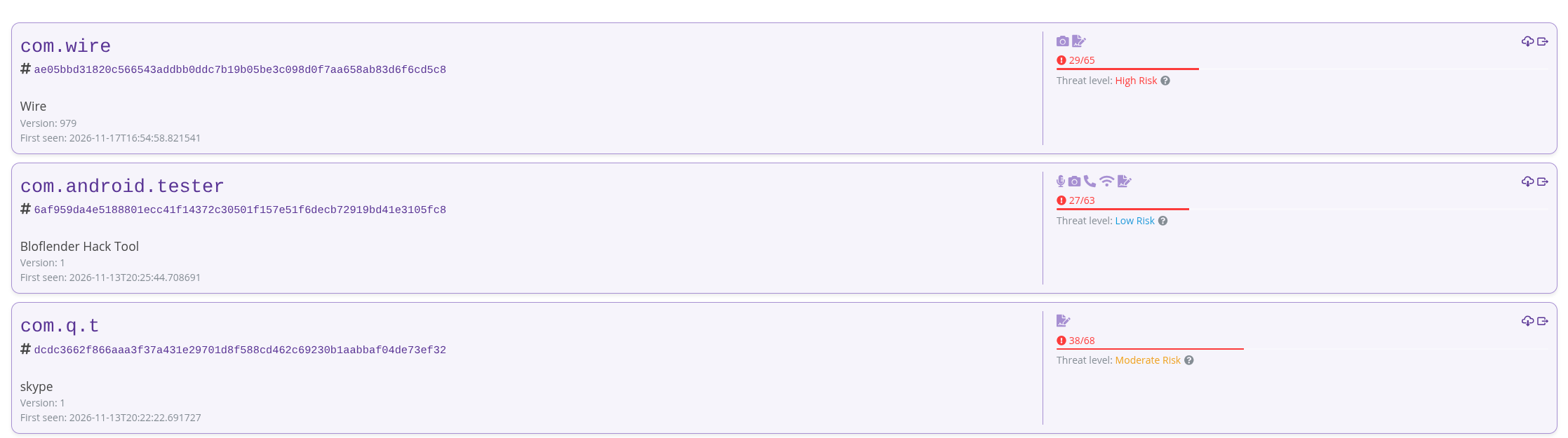
Underneath the similarity graph are the results from the search query. Each entry is composed of a two part card.
The left most side shows:
- the package name
- the sample sha256
- the app name
- the app version
- the upload data
- the fields that matched the query
The right most side summarizes the application, showing:
- icons representing the dangerous permissions
- the estimated threat score
- similar samples when applicable
The package name and sha256 are links to the analysis report.
Fuzzy search
Section titled “Fuzzy search”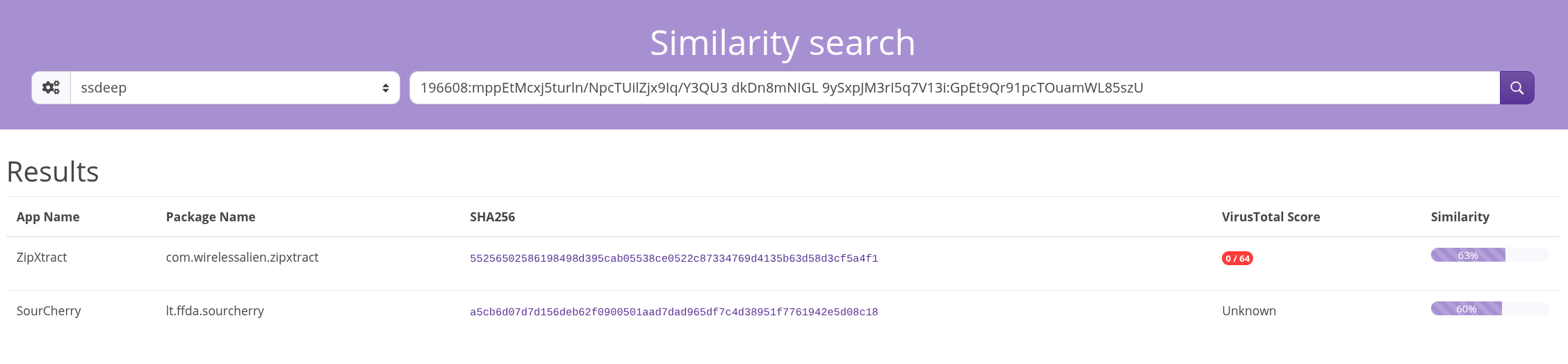
The fuzzy search allows the user to search through the instance’s database using fuzzy hash algorithms. The left part of the form is to chose the algorithm type. The right part is where the fuzzy hash is input.
To access the fuzzy search page, either click on the search by fuzzy hash link on the homepage, or pivot from a fuzzy hash in a sample report.
The results are displayed as a table, showing the app name, package name, sha256, VT score, and a similarity score.
The similarity score is an estimate of the similarity between the original sample and the results.