
Homepage
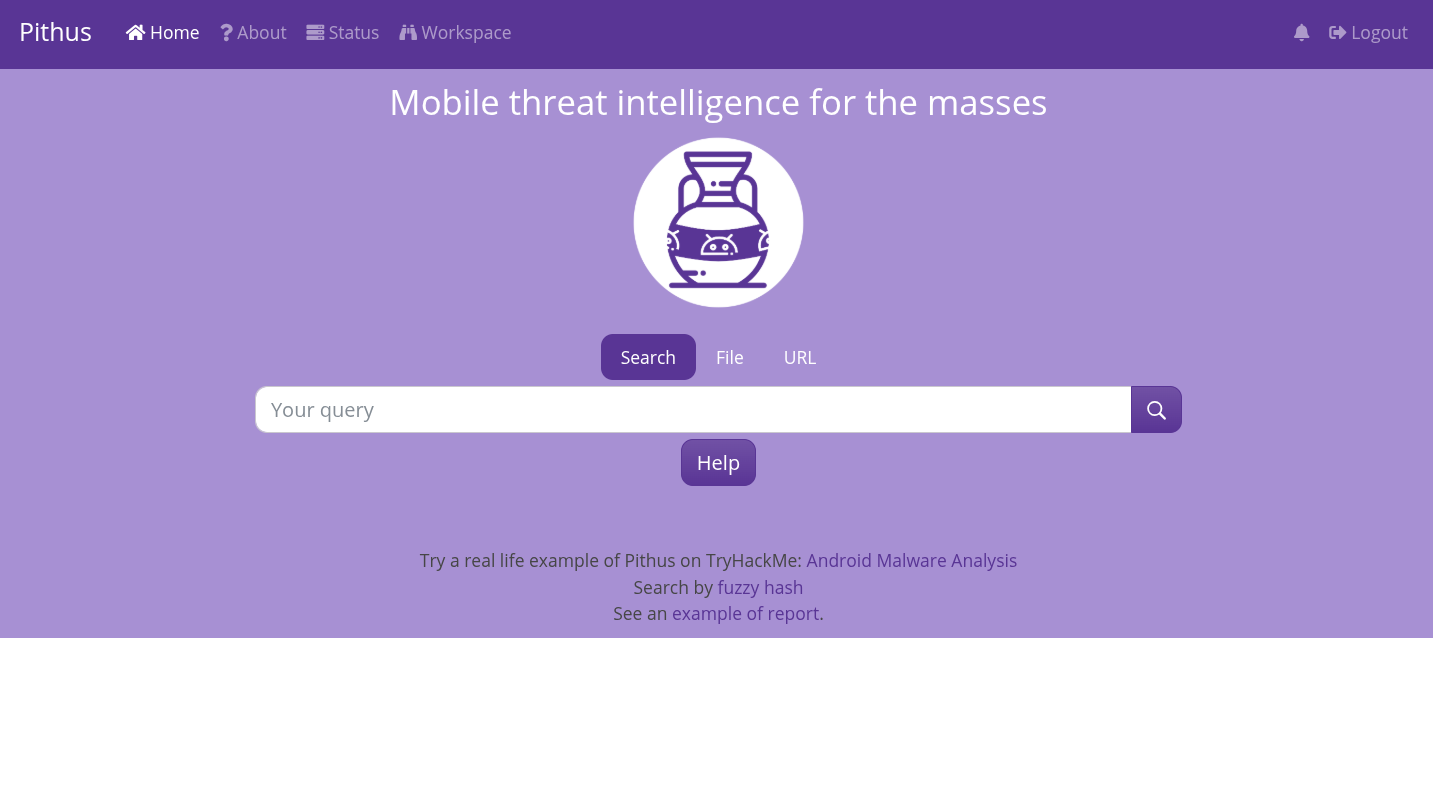
Navbar
Section titled “Navbar”The navbar at the top links to various places:
- Home: the main homepage of Pithus
- About: the information page about the project
- Status: a page summarizing the instance’s status, designed to quickly identify issue with the configuration or the services
- Workspace: when logged in, allows the user to access their personnal workspace
- Notification page, shown with the bell icon, display the user’s notifications when logged in
- Login/Logout: link to the login page, or to logout when user is already authenticated.
Search bar
Section titled “Search bar”By default, the user is presented with the search bar. This is used to request the instance’s database for existing samples. More information can be found in the search page.
Upload
Section titled “Upload”To upload a file, there are two options: File or URL.

Clicking on the File button switches the search bar to the upload form. Upload size is a setting that can be changed for individual instances.
To change the upload max size for an instance, edit the MAX_APK_UPLOAD_SIZE variable in the /bazaar/config/settings/base.py file.
Selecting a file for upload and click submit will launch and analysis if the file is in a valid format. In the event the uploaded sample have already been analysed, the upload button will show a Show report instead, preventing the user to upload an already existing application, and redirecting them directly to the corresponding report.

Similarly to the File option, the URL option will upload an application and launch an analysis. The only difference being that the application will first be fetched from the specified URL address.
After an upload have been successfully made, or in the event the user clicked the show report button, they will be sent to the report page.